


Outlook.com Email Server Settings
Outlook.com is our preferred email hosting provider.
Below are the details you need to configure outlook.com.
*You can always access your email by going to www.outlook.com
Add Outlook.com to Office Outlook
Add Outlook.com to Mac (Macmail)
Macmail as we understand does not support Activesync. As such you will need to use IMAP to configure.
You have to follow exactly the same procedure as above, except that you need to select IMAP as your email accounttype (and not POP).
Account type: IMAPIncoming mail server: imap-mail.outlook.com
Outgoing mail server (SMTP): smtp-mail.outlook.com
Logon Information:
User Name: your email address
Password: your password
Outgoing mail server (SMTP): smtp-mail.outlook.com
Logon Information:
User Name: your email address
Password: your password
Then click on the “More Settings” button:
Outgoing Server tab: mark the box “My outgoing server (SMTP) requires authentication” and select “use same settings as my incoming mail server”.
Outgoing Server tab: mark the box “My outgoing server (SMTP) requires authentication” and select “use same settings as my incoming mail server”.
Advanced tab – Server Port Numbers:
Incoming server (POP3): port 993 – you must also mark the box “this server requires an encrypted connection (SSL)”
Outgoing server (SMTP): port 587 – you must also choose “TLS” for the option “Use the following types of encrypted connection”.
Incoming server (POP3): port 993 – you must also mark the box “this server requires an encrypted connection (SSL)”
Outgoing server (SMTP): port 587 – you must also choose “TLS” for the option “Use the following types of encrypted connection”.
You can use the same Outlook.com IMAP server settings for any other email app, including iOS or Android Email apps.
Add Outlook.com for mobile
Access Outlook.com on your Windows Phone, iPhone, iPad, iPod Touch, or Android.
iPhone, iPad, or iPod Touch
- Tap Settings, and then tap Mail, Contacts, Calendar.
- Tap Add Account in the Accounts page.
- Select Hotmail.
- Enter your Outlook.com address and password.
- Select the fields that you want to sync. Tap Save.
Android
You can use Outlook.com on your Android phone or tablet with the free Android app published by Microsoft + SEVEN.
- Download the app - Search for Outlook.com in Google Play with your Android device.
- Enter your Outlook.com email address and password, and then tap Next.
- Choose additional options like sync mail frequency and nickname to use, and then tap Next.
- Check/uncheck sync calendar and contacts, and then tap Next.
Windows Phone
- On Start, flick left to the App list, tap Settings, and then tap Email & accounts.
- Tap add an account.
- If you have a Windows Phone 8, tap Outlook.
– or –
If you have a Windows Phone 7, tap Windows Live. - Enter your Outlook.com address.
- Tap the Password box, and then enter your Outlook.com password.
- Tap Sign in.
Other
Outlook.com POP Mail Server Settings
When you add the outlook.com account to Outlook 2013, on the first screen make sure you select “Manual setup or additional server types”. On the next screen, choose “POP or IMAP” and enter the following Outlook.com mail server settings in the Server Information fields:
Account type: POP3
Incoming mail server: pop3.live.com
Outgoing mail server (SMTP): smtp.live.com
Logon Information:
User Name: your @outlook.com email address
Password: your @outlook.com password
Incoming mail server: pop3.live.com
Outgoing mail server (SMTP): smtp.live.com
Logon Information:
User Name: your @outlook.com email address
Password: your @outlook.com password
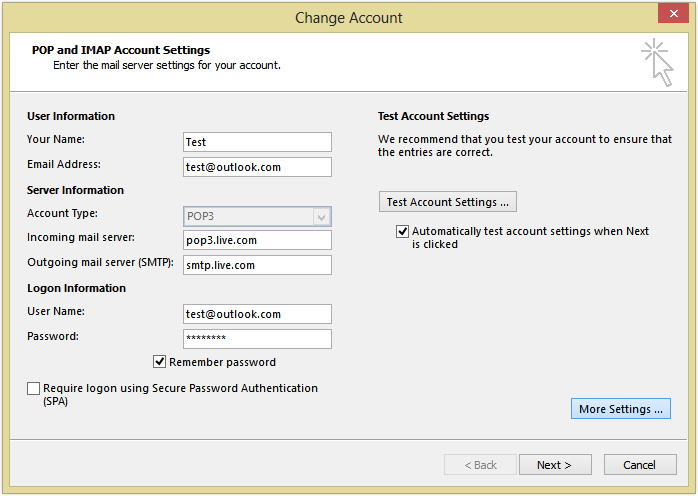
Then click on the “More Settings” button:
Outgoing Server tab: mark the box “My outgoing server (SMTP) requires authentication” and select “use same settings as my incoming mail server”.
Outgoing Server tab: mark the box “My outgoing server (SMTP) requires authentication” and select “use same settings as my incoming mail server”.
Advanced tab – Server Port Numbers:
Incoming server (POP3): port 995 – you must also mark the box “this server requires an encrypted connection (SSL)”
Outgoing server (SMTP): port 587 – you must also choose “TLS” for the option “Use the following types of encrypted connection”.

Incoming server (POP3): port 995 – you must also mark the box “this server requires an encrypted connection (SSL)”
Outgoing server (SMTP): port 587 – you must also choose “TLS” for the option “Use the following types of encrypted connection”.
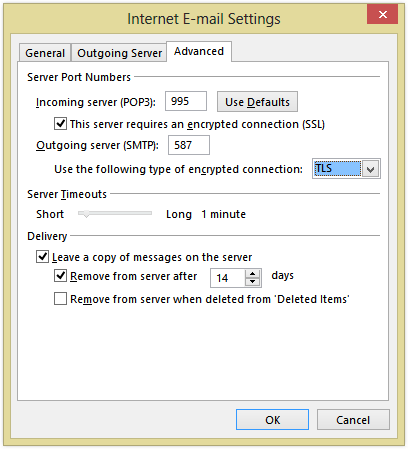
You can use the same Outlook.com POP server settings for any other email app, including iOS or Android Email apps.
Outlook.com Active Sync Settings
ActiveSync lets you send, receive & synchronize not just your emails, but also your calendar, contacts or tasks. When you add the outlook.com account to Outlook 2013, on the first screen make sure you select “Manual setup or additional server types”. On the next screen, choose “Outlook.com or Exchange ActiveSync compatible service” and enter the following Active Sync server settings:
Mail Server: m.hotmail.com
Also, mark the box to use SSL for the server connection.
User Name: your full @outlook.com email address
Password: your @outlook.com password
Also, mark the box to use SSL for the server connection.
User Name: your full @outlook.com email address
Password: your @outlook.com password
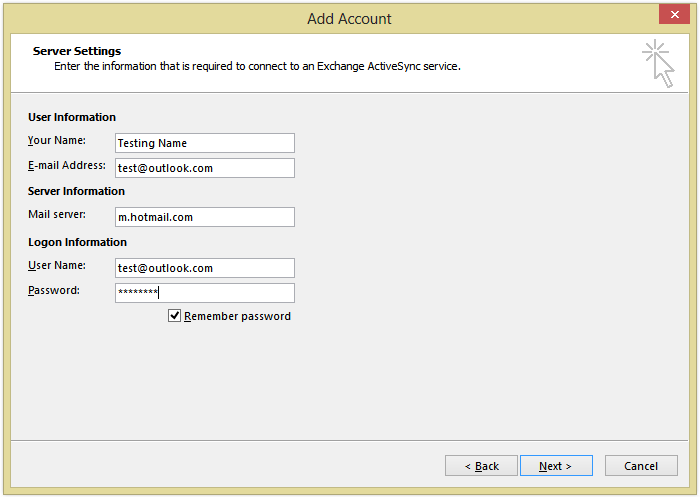
Overview: Outlook.com Server Settings
The Outlook.com mail server settings are valid for every email client application that supports the POP3, IMAP or Active Sync protocols, no matter the platform (Windows, Mac, iOS, Android, etc).
| Outlook.com POP3 servers | |
|---|---|
| Incoming mail server | pop3.live.com |
| Incoming mail server port | 995 (SSL required) |
| Outgoing (SMTP) mail server | smtp.live.com |
| Outgoing (SMTP) mail server port | 587 (SSL/TLS required) |
| Outgoing server (SMTP) authentication | yes, same settings as my incoming mail server |
| Outlook.com IMAP servers | |
| Incoming mail server | imap-mail.outlook.com |
| Incoming mail server port | 993 (SSL required) |
| Outgoing (SMTP) mail server | smtp-mail.outlook.com |
| Outgoing (SMTP) mail server port | 587 (SSL/TLS required) |
| Outgoing server (SMTP) authentication | yes, same settings as my incoming mail server |
| Outlook.com via Active Sync | |
| Active Sync mail server | m.hotmail.com (SSL required) |
